
Instagram Photo Downloader
- Full Size JPG
- Carousel ZIP
- No Login
Works on iPhone · Android · Windows · Mac
How to Download Instagram Photos
- In Instagram, open the photo post. Tap the three dots or paper plane, then Copy link.
- Paste the link into the box above and tap Download.
- Each photo appears with its own button. Tap Download Photo, or Download All Photos to get every picture in one ZIP.
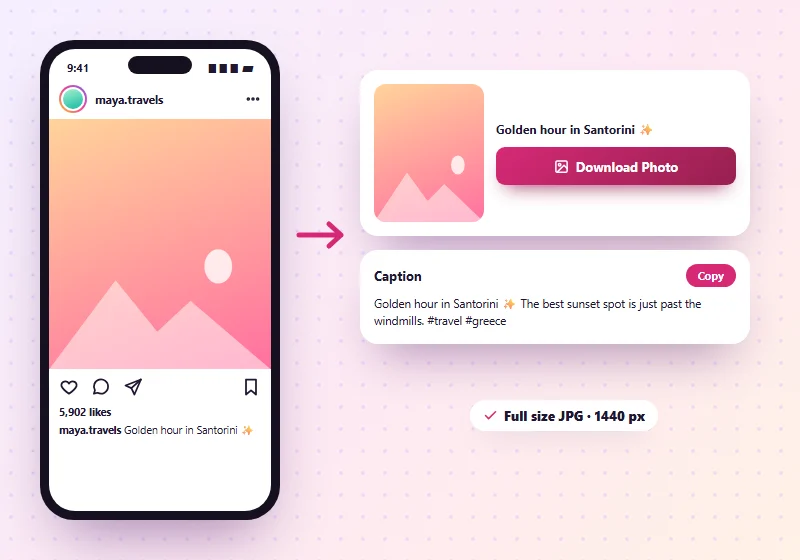
Instagram doesn't have a button to save photos to your gallery, and screenshots crop the picture and lose quality. SnapInsta's Instagram photo downloader saves the full image as a JPG, in the size Instagram stores it. It works for single photos and for carousel posts with up to 20 pictures.
Save Every Photo From a Carousel
Carousel posts can hold up to 20 photos and videos. When you paste the link, SnapInsta shows every item in the post as a grid. Save just the one you need, or tap Download All Photos to get them all at once in a ZIP file, numbered in the same order as the post. Videos in the same post get their own Download Video button and save as MP4. For video posts, use our Instagram video downloader.
Photo Quality: What Size Do You Get?
Instagram keeps several sizes of every picture and shows a smaller one in the app. SnapInsta always picks the largest one stored, which is usually up to 1440 pixels wide for new posts and 1080 pixels for older ones. Square, portrait (4:5) and landscape photos keep their original shape, with nothing cropped.
| Photo type | Supported | Saved as |
|---|---|---|
| Single photo post | Yes | JPG, full size |
| Carousel (album) post | Yes, every photo | JPG, or all in one ZIP |
| Photos mixed with videos | Yes | JPG and MP4 |
| Profile picture | On our profile page | JPG |
| Private account photos | No | – |
Why Download Instead of Screenshot?
| Item | Screenshot | SnapInsta |
|---|---|---|
| Quality | Lower, depends on your screen | Full size as stored by Instagram |
| Cropping | Includes buttons and captions | Just the photo |
| Carousels | One screenshot per photo | Every photo listed, or one ZIP |
| Caption | Not included | Shown with a Copy button |
Where Do the Photos Go?
Android: In Downloads, and in your Gallery app.
iPhone: In the Files app. Open a photo, tap Share, then Save Image to put it in Photos. Our iPhone guide shows every step.
PC or Mac: In your Downloads folder. ZIP files open with a double-click.
Who Uses an Instagram Photo Downloader?
- Creators who want a full-quality backup of their own posts.
- Shoppers and cooks who save product photos, recipes and infographics to read later.
- Friends and family keeping travel and event photos shared with them, with permission.
- Designers and students collecting ideas for a mood board or a project, for personal use.
Download Instagram Photos on Phone and PC
On iPhone
Open the post link in Safari, paste it here and tap Download Photo. Safari saves the JPG to Files > Downloads. Open it, tap Share and choose Save Image to move it to your Photos app. For a whole carousel, tap Download All Photos, then tap the ZIP in Files to unpack it.
On Android
Paste the link in Chrome and tap Download Photo. The picture appears in your Gallery and in Files > Downloads within a few seconds. ZIP files open in the Files app with Extract.
On Windows and Mac
Copy the post address from instagram.com, paste it here and click the button under the photo you want. The JPG saves to your Downloads folder. To get every picture of a carousel at once, click Download All Photos and unzip the file.
Which Links Work?
| Link you paste | What you get |
|---|---|
| instagram.com/p/… (photo post) | The photo as JPG |
| instagram.com/p/… (carousel) | Every photo, one by one or as a ZIP, plus any videos |
| instagram.com/username/p/… | Same as above, the username part is fine |
| Shared link with ?igsh=… at the end | Works, the extra part is ignored |
| instagram.com/stories/… | Not supported |
Tips for the Best Photo Quality
- Download, don't screenshot. A screenshot is limited to your screen size and adds the app around the picture.
- Use the post link, not a link from a story share, so SnapInsta can find the original file.
- Keep the JPG as it is. Every time you edit and save a JPG again it loses a little quality, so keep the downloaded file as your master copy.
- Save your own posts regularly. It's the easiest backup if you ever lose your account.
Photo Downloads Not Working?
- Only one photo shows: make sure you copied the post link, not a link to a single image.
- "Not available": the account is private or the post was deleted.
- The ZIP won't open on iPhone: tap it in the Files app and it unpacks into a folder.
More Instagram Tools
Instagram Photo Downloader FAQs
Can I download Instagram photos in full size?
Yes. SnapInsta saves the largest size Instagram has stored for that photo.
Can I download all photos in a carousel post?
Yes. Every photo shows up with its own download button, and Download All Photos saves them all in one ZIP.
How do I save the second photo of a carousel?
Paste the post link. The grid shows every photo in order, so tap the button under the second one.
What format are the photos saved in?
Photos are saved as JPG, which opens on any device.
Is the Instagram photo downloader free?
Yes. It's free, with no sign-up and no limit.
Can I download photos from private accounts?
No. SnapInsta only works with public posts.
Does Instagram tell the owner when I save their photo?
No. Instagram doesn't notify anyone, and SnapInsta never logs in to Instagram.
Do I need an app to download Instagram photos?
No. SnapInsta works in the browser you already have, on any phone or computer.
Why is the downloaded photo smaller than I expected?
Instagram resizes every upload. SnapInsta gives you the largest version Instagram kept, which is usually up to 1440 pixels wide.
Can I download someone's profile picture here?
Use our profile picture downloader for that. It saves profile pictures in full size.