
How to Download Instagram Videos
Downloading an Instagram video takes three steps on any device: copy the link, paste it into SnapInsta and tap Download. This guide explains each step, then links to a detailed guide for your phone or computer.
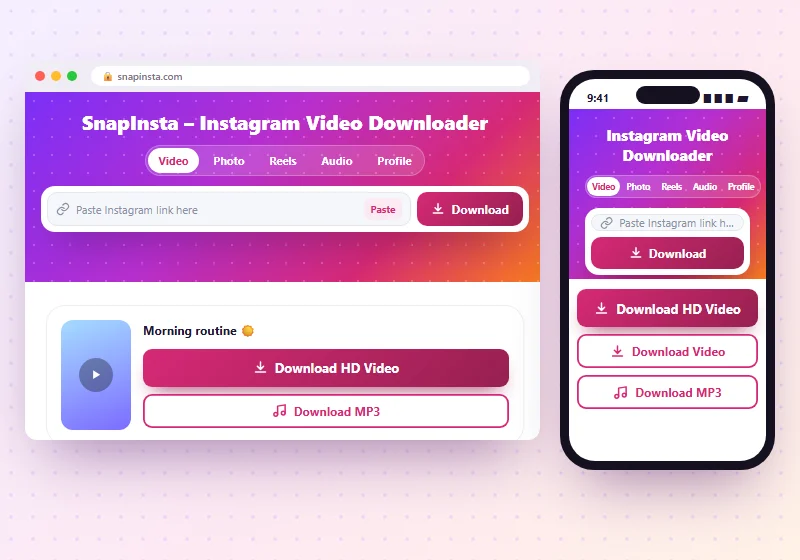
Step 1: Copy the Link From Instagram
- In the app: open the post or Reel, tap the paper plane (Share) icon, then Copy link. On some posts the option is under the three dots.
- On a computer: open the post on instagram.com and copy the address from the top of your browser.
- For a profile picture: copy the username or the profile URL.
Step 2: Paste the Link on SnapInsta
Open SnapInsta in your browser, tap the box at the top and paste. On a phone, tap the Paste button next to the box. You don't need an account or an app.
Step 3: Tap Download and Save
SnapInsta shows a preview and buttons for each file: the HD video, the normal video, the MP3 sound and the cover image. For photo posts you get one button per photo and a ZIP of all of them. Tap a button and the file saves to your device.
Guides for Your Device
| Device | Browser to use | Guide |
|---|---|---|
| iPhone and iPad | Safari | Download Instagram videos on iPhone |
| Android phones and tablets | Chrome or Samsung Internet | Download Instagram videos on Android |
| Windows PC and Mac | Chrome, Edge, Firefox or Safari | Download Instagram videos on PC |
Downloading Other Instagram Content
The same three steps work for everything SnapInsta saves:
- Reels: use the Reels downloader.
- Photos and carousels: use the photo downloader.
- Sound only: use the audio downloader.
- Profile pictures: use the profile picture downloader.
Common Problems
The link doesn't work
Copy it again from the Share menu. It should start with instagram.com, and the post must be public.
The video plays instead of downloading
Long-press the download button (or right-click on a computer) and choose Download link or Save link as.
I can't find the downloaded file
Look in the Downloads folder first. On iPhone that's inside the Files app, and on Android it's in the Files or My Files app.
Frequently Asked Questions
Do I need an app to download Instagram videos?
No. SnapInsta works in your browser on any phone or computer.
Is it free to download Instagram videos?
Yes. SnapInsta is free, with no sign-up.
Can I download videos from private accounts?
No. Only public posts can be downloaded.