
How to Download Instagram Videos on PC
You don't need any software to download Instagram videos on a computer. SnapInsta works in Chrome, Edge, Firefox and Safari on Windows and Mac. Copy the link, paste it and the video lands in your Downloads folder.
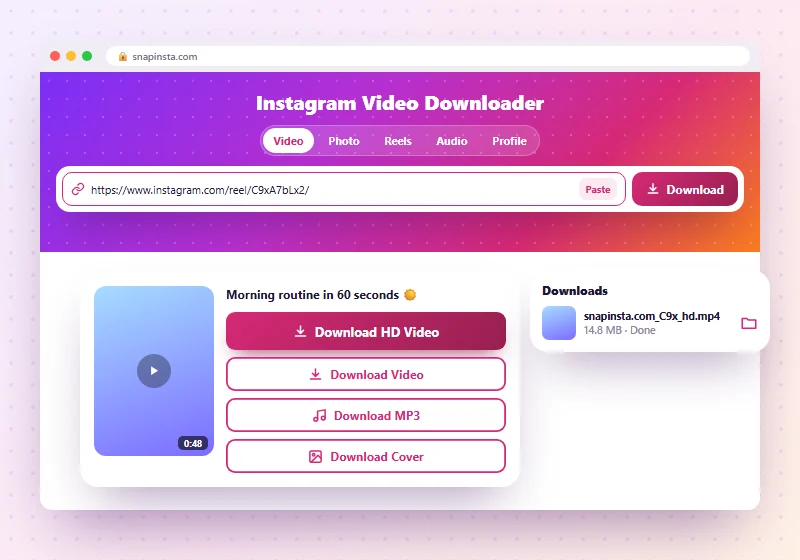
Step 1: Copy the Link on Instagram.com
Open instagram.com in your browser and click the video or Reel. Click the address bar at the top (or press Ctrl + L on Windows, Cmd + L on Mac) and copy the address with Ctrl + C or Cmd + C.
You can also click the three dots on a post and choose Copy link.
Step 2: Paste the Link Into SnapInsta
Open SnapInsta in a new tab, click the box at the top and paste with Ctrl + V or Cmd + V. Click Download.
Step 3: Save the File
Click Download HD Video, Download Video, Download MP3 or Download Cover. Your browser saves the file to the Downloads folder.
Find Your Downloads
| Computer | Where to look |
|---|---|
| Windows | File Explorer > Downloads, or press Ctrl + J in your browser |
| Mac | Finder > Downloads, or the download arrow in Safari's toolbar |
To choose a different folder, open your browser's settings, find Downloads, and turn on Ask where to save each file.
Downloading Photos on a Computer
Photo posts and carousels work the same way. Click Download All Photos for a ZIP of every picture. On Windows, right-click the ZIP and choose Extract All; on Mac, double-click it. See the photo downloader for more.
Problems on PC
The video opens in a new tab
Right-click the download button and choose Save link as.
The link isn't accepted
Make sure you copied the post address, not your profile or the Instagram home page.
On a phone? Use the iPhone guide or the Android guide.
Frequently Asked Questions
Do I need to install software to download Instagram videos on PC?
No. SnapInsta works in your browser.
Does it work on Mac?
Yes, in Safari, Chrome, Edge or Firefox.
Can I download Instagram Reels on my laptop?
Yes. Use the Reels downloader the same way.